
Found a bug or have an idea? Tell us on Fluxer Feedback. If you want to join the discussion with the team and other users, come to Fluxer Labs.
Fluxer is free and open source software under the AGPLv3 license, and anyone can use, change and share its code. If you change it and run it for other people, you have to share the source code of your version under the same license. Running your own copy on your own server is called self-hosting, and each copy is called an instance. Fluxer.app is the official instance that we run, and anyone can sign up and use it for free.
Fluxer.app really got going on February 9, 2026. On October 19, 2026, a little more than eight months later, it passed half a million registered users.
Since October 12, 2026, the desktop app can connect to self-hosted instances as well as Fluxer.app. The iOS and Android apps can also connect to them.
Set up your own instance
 Self-hosting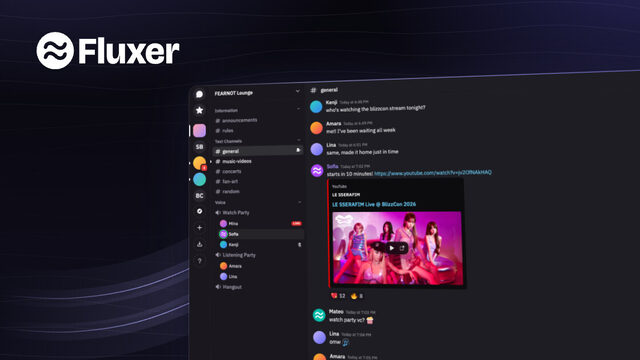
You need a machine with at least 4 GB of memory that runs 64-bit Linux, macOS or Windows, and a domain name that points to it. A Linux server works, and so does a Mac or a Windows PC that runs Docker Desktop. On Linux, rexctl installs Docker for you if it's missing. The ports you need to open are in the list of requirements.
rexctl is the tool that sets up your instance and keeps it running. On Linux and macOS, this command downloads rexctl and starts setting up your instance.
curl -fsSL https://fluxer.dev/install.sh | sh
On Windows, run irm https://fluxer.dev/install.ps1 | iex instead.
rexctl asks for your domain, checks that it points to your machine, gets a certificate for it and starts Fluxer. Then it asks a few questions about your instance. You can create your admin account right there in the terminal, or in your browser with a setup token that rexctl prints for you. Here's the whole setup on a new server.
root@chat:~# curl -fsSL https://fluxer.dev/install.sh | sh
✓ Installed rexctl 2026.1023.190000

        ▄▀▀▀▀▀▀▄
        ▀▀▀▀▀▀▀▀
        ▀▀▀▀▀▀     Hi, I'm Rex.
▀▄    ▄▀▀▀▀▀▀      Let's get your Fluxer instance running.
 ▀▀▀▀▀▀▀▀▀▀▀
      ▀▀ ▀▀

✓ This machine has 8 GB of memory.
✓ This machine has 74 GB of free disk space.
✓ Docker 29.9.2 is running.
What address will people use to open your instance?
> chat.example.com

✓ chat.example.com points to this machine (203.0.113.10).
✓ Ports 80, 443, 7881 and 7882 are free.
Where do you want to create your admin account?
> Here in the terminal

✓ Started Fluxer.
✓ Got a certificate for chat.example.com.
Will people sign in with an email address or a username?
> Username

Your admin username
> hampus

Your admin password
> ••••••••••••

What's your instance called?
> Fika Lounge

Who can create an account?
> People with an invite link

✓ Created your admin account.
✓ Saved your recovery kit to /opt/fluxer/recovery-kit-hampus.txt.
  Keep a copy somewhere safe. You'll need it if you lose your password.

        ▄▀▀▀▀▀▀▄
        ▀▀▀▀▀▀▀▀
        ▀▀▀▀▀▀     All set. Your instance is ready.
▀▄    ▄▀▀▀▀▀▀
 ▀▀▀▀▀▀▀▀▀▀▀
      ▀▀ ▀▀


    https://chat.example.com

✓ Made a link that signs you in. It works once, until 00:09 on 24 October.

    https://chat.example.com/login#sign_in_link=Qm4vT7xKc2RpZ9wLs8YdN3bHf6JeA1uGo5iXrVtEyWk

root@chat:~#
rexctl asks how people sign in, and I recommend usernames. That way, people create an account with just a username and a password, and the instance never asks for an email address. If your instance sends email, you can choose email sign-in instead, and rexctl asks for your email server. You can't change this after the first account exists.
The sign-in guide explains both options. You can also turn on single sign-on in the admin panel and let people sign in through your own identity provider, such as Authentik or Keycloak, over OpenID Connect. I'm still improving it.
Once your instance is running, rexctl also upgrades it, backs it up and manages accounts, and the guide to running your instance shows how. rexctl upgrade makes a backup first and goes back to the old version if the new one doesn't start.
You can also put Fluxer behind your own reverse proxy. For Kubernetes, there's an official Helm chart, and the Kubernetes guide shows how to install it.
If you used the earlier installer script, you don't need to set up your instance again. Run rexctl upgrade in its folder, and rexctl takes over your instance and upgrades it. Your data and settings stay as they are. If you edited any of its files by hand, rexctl keeps your changes and waits for you to run rexctl upgrade again.
I'm still improving rexctl and the docs, mostly based on problems people report. If something doesn't work or isn't clear, tell me on Fluxer Feedback or ask in Fluxer Developers, where anyone can help. You can follow development on GitHub.
Connect the desktop app
The first time you open the desktop app, it asks which instance you want to use. Click Fluxer.app, or click "Add another instance" and enter the address of a self-hosted instance, such as chat.example.com. The app then connects directly to that instance. All the screenshots in this post show the desktop app on Windows.


A self-hosted instance can show its own name, logo, logo text and background image on the sign-in screen, and an instance admin sets them under "Identity & branding" in the admin panel. In the desktop app, the instance's logo text also shows at the top of the window, on the left on Windows and Linux and on the right on macOS.
On an instance that uses usernames, click "Register an account" to make one. The form asks for a username, password and optional display name, with no email field.

After you create the account, the app shows "Your recovery kit". With no email address on your account, the kit is how you get back in, and you can click "Download PDF", "Print" or "Copy" to keep its recovery key somewhere safe. If you forget your password, click "Forgot your password?" on the sign-in screen, enter your username and your recovery key under "Recover your account" and choose a new password.
If you lose your recovery kit, you can create a new one in your account settings, and your instance admin can also give you a link that lets you reset your password.


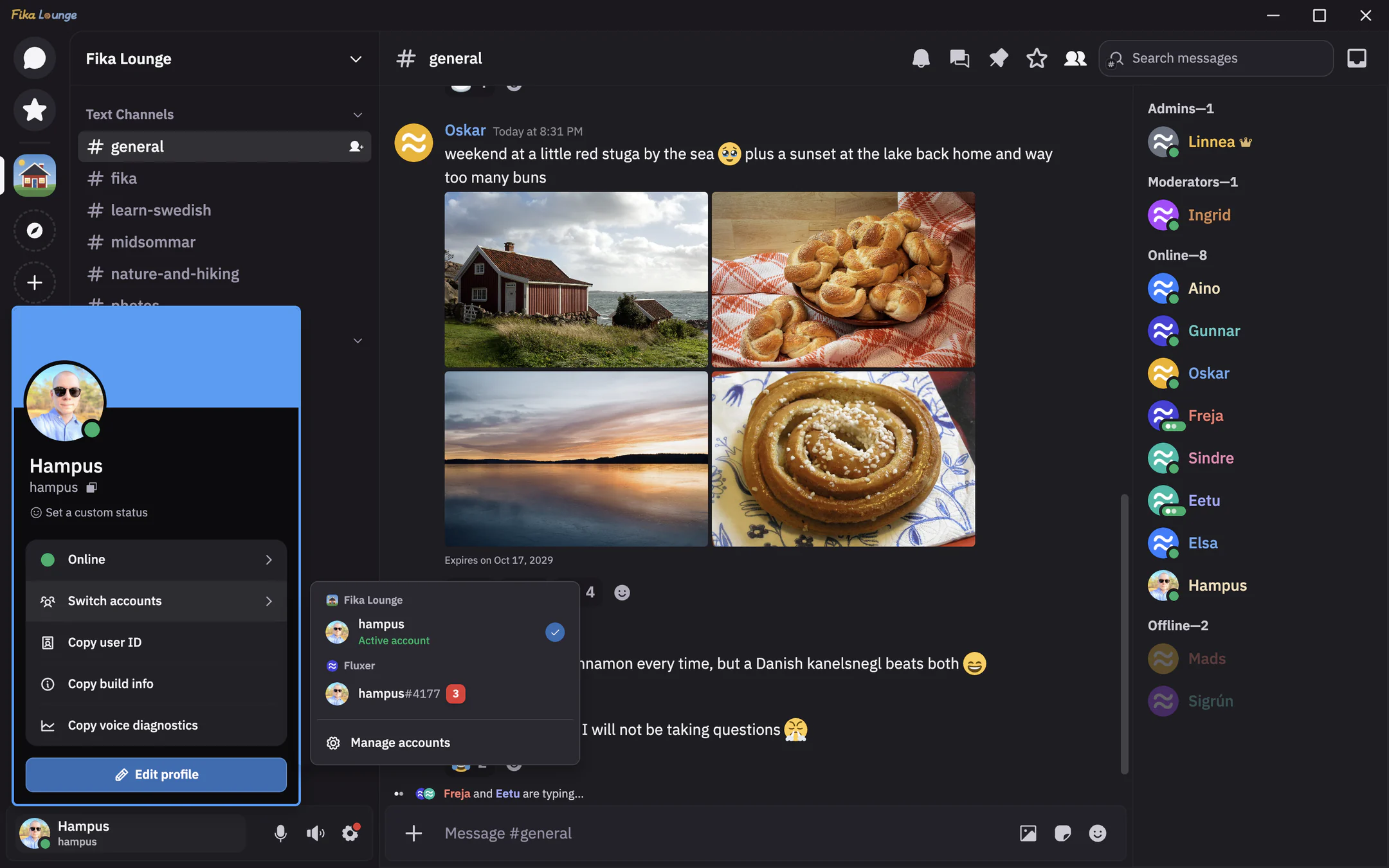
You can sign in to accounts on as many instances as you like. To switch between them, click your avatar in the bottom left and hover over "Switch accounts". The menu groups your accounts by instance and shows how many mentions each connected account has. You can also open the account switcher with Ctrl+Shift+O, or Cmd+Shift+O on macOS. Your most recently used accounts stay connected in the background.
Connect the iOS and Android apps
The iOS and Android apps connect to self-hosted instances too, and they're in public beta on TestFlight and the Google Play beta. Both are on the download page.
The sign-in screen shows which instance you're signing in to, with "Change" next to it. Tap "Change", enter your instance's address under "Instance URL" and tap "Connect". Instances you've connected to before show up under "Recent instances". To go back to Fluxer.app, tap "Reset to Fluxer" or enter its other address, fluxer.com. If the instance uses usernames, tap "Register" next to "Need an account?" to make one.


Once you're signed in, the app works the same way it does on Fluxer.app.


When you create an account on an instance that uses usernames, the iOS and Android apps show a recovery kit too, and you can save it as an image. You can make a new one later with "Create a new kit" under "Security & login" in your settings.
To add an account on another instance, open the "You" tab and tap "Add an account". Once you have more than one account, that row says "Switch accounts", and "Add an account" is at the bottom of the account list that opens when you tap it.


In the official iOS and Android apps, push notifications from a self-hosted instance go through our push relay, and only when both you and your instance admin turn it on. Your instance encrypts each notification, and the relay can't decrypt it. On Android, you can use the UnifiedPush version of the app instead, which gets notifications without Fluxer being involved. The push relay notice lists what the relay records.
What's next for self-hosting
Next, I'm working on combining your accounts from different instances into a single view. It's possible because I spent months reworking the desktop app so it can stay connected to your accounts on several instances at the same time. The single view works on its own, and federation is the next big step after it. Federation will always be optional, and every Fluxer instance can keep running without it.
Later, you'll also be able to move your community from Fluxer.app to your own instance. The plan is to copy its structure, emoji and stickers, but not its members. Messages come over only as empty placeholders that keep their place in each channel. The details may still change, and federation could make this smoother later on.
Your members then decide for themselves, and none of their messages are copied to your instance until they agree. When they open the moved community, they can sign up on your instance and sign in with their Fluxer.app account to bring their messages and membership over, or ask for their messages to be deleted from Fluxer.app instead. When someone moves over, their placeholders fill in with their messages.
When the new voice and video system is out, adding a voice server to your instance gets simpler. When you set up the machine, you'll give it a registration token, and your instance will pick up the server automatically. The admin panel will show each server's health and load, and calls won't be sent to a server that's unhealthy.
There's still a lot to improve in self-hosting, and you can be part of it. I keep reducing the resources and moving parts a Fluxer installation needs, to make it as lightweight as possible. Try it out and tell me on Fluxer Feedback how you want your software to work. Your bug reports and suggestions help me decide what to build next. If you have an Operator Pass, you can also talk about it in the #operators channel.
The Operator Pass
Self-hosting is free, and the software needs no license key or extra payment.
The Operator Pass is an optional one-time purchase for anyone who wants to back Fluxer, whether you self-host, build bots or just use it. It pays for my work on Fluxer. You get the Operator badge on your profile and your name on the Operators' wall on our homepage. You keep both for life, as long as the official Fluxer service and website are running. The pass doesn't unlock or change anything on your own instance.
As a bonus, you get the Operator role in Fluxer Labs. It gives you access to the #operators channel, where Operators talk about self-hosting, bots and the API, and I take part when I can. You also get invited to try new features early, and if you choose, your name goes on the yearly Operators list in a Fluxer release. The bonus is the same for every Operator, and it isn't part of what you pay for. It can change or end.
I'm also working on a list of Fluxer instances on our website. Anyone who follows the listing rules will be able to add their instance for free, and being on the list will never need the pass. As part of the bonus, instances run by an Operator will show an Operator mark. It isn't out yet, and it might change or not happen at all.
Listed instances are run by the people who host them, not by us. We'll review every listing ourselves, and we can turn one down or take it off the list.
Sales open on November 1, 2026. Join the waitlist on the Operator Pass page.
Operator Pass
Everything else I'm working on is in the roadmap.
Closing thoughts
See you in the Fluxerverse!
Found a bug or have an idea? Tell us on Fluxer Feedback. If you want to join the discussion with the team and other users, come to Fluxer Labs.